Firmware is software that lives permanently inside a device and tells its hardware what to do. You rarely see it, yet without firmware your laptop, phone or router would do nothing at all. This article explains what firmware is, how it works and which types exist. You will also learn why firmware updates matter and what separates good firmware from bad.
Firmware is a special kind of software stored directly on a device's hardware. It acts as the bridge between the physical components and the software you actually use. Firmware tells the hardware what to do, how to start up and how to talk to the other parts of the system.
Take a washing machine. When you choose a programme, the firmware decides how long the drum spins, when the water comes in and how hot it gets. All you see are the buttons and the display. Behind them, the firmware does the work.
Almost every electronic device has firmware, from your computer and smartphone to your TV, printer and even your car. In simple devices, firmware is often the only software on board. In a laptop, its main job is to get the operating system up and running.
Hardware, software and firmware are often confused, but each has its own role. Hardware is everything you can physically touch, such as a processor, a screen or a hard drive. Software is the programs and apps you install and use yourself. Firmware sits right in between: it is software, but tied permanently to one specific piece of hardware.
The biggest differences lie in how often each one changes and who changes it. The table below sets them side by side.
Hardware | Firmware | Software | |
What is it? | The physical parts of a device | Built-in software that controls the hardware | Programs and apps for the user |
Examples | Processor, memory, screen | BIOS, UEFI, your router's software | Operating system, browser, word processor |
Where does it live? | In the device itself | On a memory chip inside the device | On the hard drive or SSD |
How often does it change? | Only when replaced or upgraded | Occasionally, through an update | Often |
Who changes it? | The user or a technician | Usually the manufacturer | Users and developers |
The term firmware was coined in 1967 by the American computer scientist Ascher Opler, in an article for the trade magazine Datamation. Opler needed a name for programs that sat between hardware and software: not as fixed as hardware, but not as easy to change as ordinary software.
The word is a neat bit of wordplay. Hardware is "hard" and software is "soft". Firmware is "firm": solid, but not set in stone. That still describes firmware well today. It is fixed inside a device, yet an update can change it.
Firmware is the first piece of software to wake up when a device gets power. It checks that the hardware works, gets every component ready and then hands over control. In simple devices, firmware keeps running the whole time. In a computer or smartphone, the operating system takes over most of the work once start-up is done.
Firmware talks to the hardware directly, in the language the chips understand. That means the operating system and your apps don't need to know exactly how each component works. They send an instruction and the firmware makes sure the hardware carries it out. Firmware also keeps working quietly in the background while you use a device. Think of the firmware inside your SSD, your Wi-Fi chip or your keyboard's controller.
Firmware sits on a memory chip that keeps its contents even when the power is off. This is known as non-volatile memory. The type of chip manufacturers use has changed a lot over the years. These are the most common forms:
ROM (read-only memory): the firmware is written to the chip once at the factory and can never be changed. You mainly find this in older or very simple devices.
EEPROM: memory that can be erased and rewritten electrically. It suits small amounts of data, such as settings.
Flash memory: fast, roomy and easy to rewrite. This is now the standard in almost every device.
Thanks to flash memory, updating firmware is easy today. In the past, it sometimes meant replacing an entire chip.
What actually happens when you press the power button on your computer? Within a few seconds, the device runs through a fixed sequence of steps, with firmware playing the lead role:
Power on: the processor receives power and looks for the firmware at a fixed location in memory.
Firmware loads: the firmware starts up. On a PC, this is usually UEFI or BIOS.
Hardware check: the firmware checks that the processor, memory and storage are working. This test is called the power-on self-test (POST).
Bootloader: the firmware finds the drive holding the operating system and starts the bootloader.
Operating system: the bootloader loads Windows, macOS or Linux, and the operating system takes control.
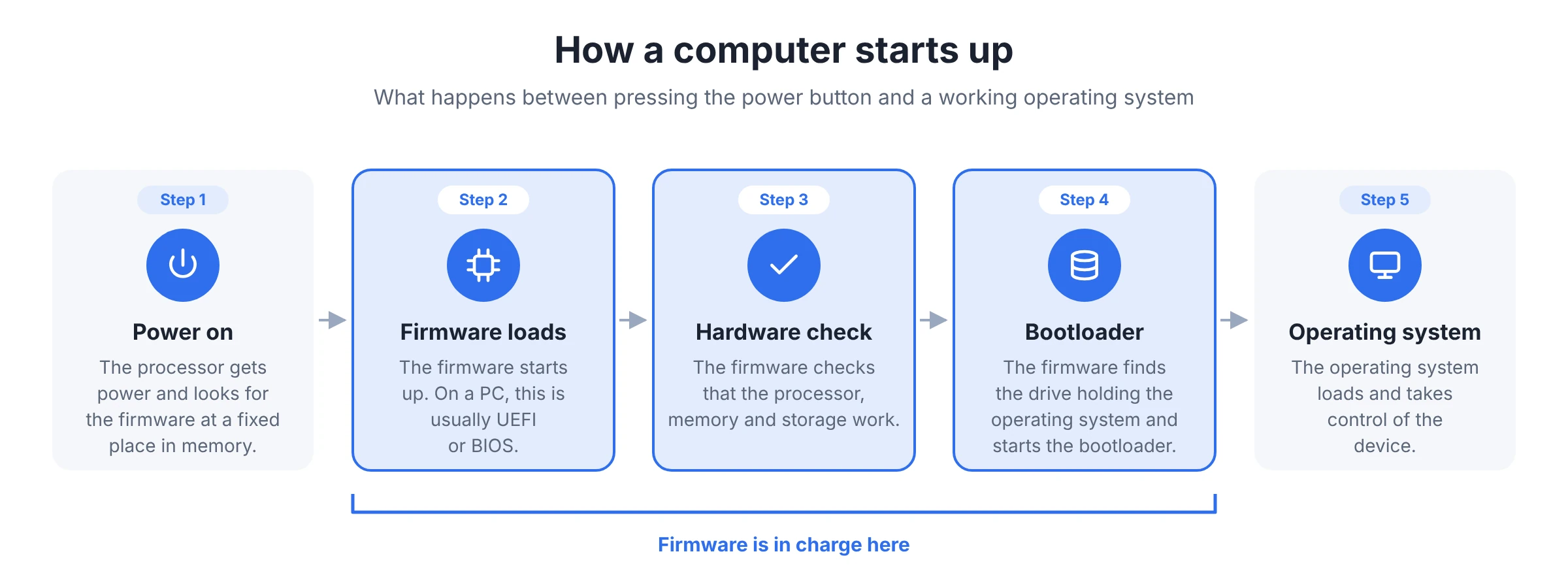 The firmware runs steps 2 to 4 on its own; the operating system only takes over at the very end.
Hear a beep or see an error message before your operating system appears? That message usually comes from the firmware. It often points to a hardware problem, such as a loose memory module.
Not all firmware is the same. A simple remote control needs very different firmware from a laptop or a car. Broadly, you can group firmware in two ways: by how deep it sits in the hardware and by the job it does. Here are the main types.
Low-level firmware sits deepest in the hardware. It is often stored on a ROM chip and usually can't be changed after production. This firmware handles a component's most basic functions, such as switching a chip on or passing along simple signals.
Because low-level firmware rarely changes, it has to work properly from day one. A bug in it is hard to fix. Often the only remedy is to replace the hardware.
High-level firmware is more extensive and is usually stored on flash memory. It contains more instructions and can handle complex tasks. Think of the firmware in a router, a smart TV or a printer.
Its big advantage is that it can be updated. Manufacturers can fix bugs, close security holes and add new features long after the device has left the shop.
Subsystem firmware controls one component within a larger system. That component works fairly independently, but it is still part of the whole. A computer contains plenty of these. Your SSD has its own firmware, and so do your graphics card, Wi-Fi module and webcam.
As a user, you hardly notice it. Yet an update to subsystem firmware can make a real difference, for example by making an SSD faster or more stable.
The best-known examples of firmware are found in computers. Almost every PC starts up with either BIOS or UEFI.
BIOS stands for Basic Input/Output System. It became widely known through the first IBM PC in 1981 and was the standard for decades. BIOS tests the hardware at start-up and then launches the operating system. You navigate it with the keyboard on a plain blue or grey screen.
UEFI stands for Unified Extensible Firmware Interface. It is the modern successor to BIOS and comes on virtually every new computer. UEFI boots faster, supports much larger drives and often has a graphical menu you can use with a mouse. It also offers Secure Boot, a feature that stops software without a valid signature from loading at start-up.
Many people still say "BIOS" when they mean UEFI, so in practice the two terms are often used interchangeably. The table below shows how they differ.
BIOS | UEFI | |
Introduced | 1980s | 2000s |
Navigation | Keyboard only, text menu | Keyboard and mouse, often graphical |
Maximum boot drive | Up to 2 TB (MBR) | Far beyond 2 TB (GPT) |
Boot speed | Slower | Faster |
Secure Boot | No | Yes |
Status | Legacy | Current standard |
You use dozens of devices with firmware every day, usually without realising it. Anything with a chip inside needs firmware to work. That goes for your laptop, but also your washing machine, your car and even your electric toothbrush. The table below lists some common examples and what the firmware does in each.
Device | What the firmware does |
Computers and laptops | Starts the device via UEFI or BIOS and controls components such as the SSD, graphics card and keyboard |
Smartphones and tablets | Handles start-up, the connection to the mobile network, the camera and battery management |
Routers and modems | Manages network traffic, the Wi-Fi connection and built-in security |
Smart TVs | Takes care of picture processing, apps and the connection to the remote |
Cars | Controls the engine, brakes, airbags and infotainment system, among other things |
Smart home devices | Connects smart bulbs, thermostats and doorbells to your Wi-Fi and their app |
Printers | Drives the print head and recognises which cartridges or toner are fitted |
Games consoles | Handles start-up, system security and the connection to controllers |
Digital cameras | Controls the sensor, autofocus and image processing |
Household appliances | Runs the programmes on your washing machine, dishwasher or microwave |
Medical devices | Makes sure devices such as pacemakers and insulin pumps work precisely and safely |
Cars are a particularly good example. A modern car carries dozens of small computers, known as electronic control units (ECUs). Each ECU runs its own firmware for its own task. More and more carmakers update that firmware remotely through an over-the-air (OTA) update, so a trip to the garage is no longer needed.
Smart home devices deserve extra attention too. They are always connected to the internet and often run for years without anyone giving them a second thought. That makes good firmware and regular updates especially important. You'll see why later in this article.
Firmware is the foundation everything else runs on. Without it, hardware is just a collection of chips and wires. The operating system can't start, apps don't work and the device doesn't respond to anything. Firmware turns separate parts into a working whole.
But it is about more than simply on and off. The quality of the firmware largely determines how well a device performs. You can see that in four areas.
Stability
Firmware makes sure all components work well together. If it contains a bug, a device may freeze, restart on its own or behave unpredictably. Plenty of vague problems with routers or laptops turn out to be firmware issues.
Compatibility
New hardware and software have to work with what you already have, and firmware makes that possible. A motherboard, for example, sometimes needs a firmware update before it will recognise a newer processor.
Performance
Firmware determines how efficiently hardware does its job. An update can make an SSD faster, help a phone battery last longer or improve a router's range, all without touching the hardware itself.
Security
Firmware is the first thing to start and has full access to the hardware. That makes it an attractive target for attackers. A flaw in firmware is often more dangerous than one in an ordinary app, because it sits deeper in the system and is harder to detect.
Outdated firmware is therefore a real risk. A device can seem to work perfectly for years while carrying known security holes. That is why manufacturers release updates regularly. The next section explains how that works.
A firmware update replaces the firmware on a device with a newer version. On many devices this happens automatically in the background. On others, you have to do it yourself. An update usually only takes a few minutes, but it calls for more care than updating an app.
No firmware is perfect on the day a device goes on sale. Bugs and weak spots often only come to light once thousands of people are using it. An update lets the manufacturer fix them after the fact. The most common reasons are:
Closing security holes: researchers and attackers regularly find new vulnerabilities. An update shuts them before anyone can exploit them.
Fixing bugs: think of a router that keeps dropping the connection or a laptop that won't wake properly from sleep.
Improving performance: an update can make a device faster, more efficient or more stable.
Adding features: sometimes a device gains new capabilities after an update, such as support for a newer Wi-Fi standard or new hardware.
Manufacturers don't provide updates forever. After a number of years, support for a device ends. It will still work, but new vulnerabilities will no longer be patched. For anything connected to the internet, that is a good moment to think about replacing it.
Updating firmware is also known as flashing. The new firmware is written to the device's flash memory, overwriting the old version. The device then restarts with the new firmware.
How you receive the update depends on the device. Smartphones, smart TVs and a growing number of cars get an over-the-air (OTA) update. It downloads over the internet and is often installed automatically. With a router, you usually start the update from its app or from the admin page in your browser. For other devices, such as a motherboard or a camera, you download a file from the manufacturer's website. You put it on a USB stick or memory card and install it through the device's menu.
With a good update, the device first checks that the firmware genuinely comes from the manufacturer. Only then does it start writing. Some devices also keep a backup of the old firmware, so they can fall back on it if something goes wrong.
A firmware update is usually safe, but not entirely without risk. The biggest danger is the update being interrupted halfway through. If the power cuts out while the firmware is being written, you are left with a half-working version and the device may no longer start.
This is called bricking: the device is now about as useful as a brick. Sometimes it can still be rescued through a special recovery mode, which is known as a soft brick. With a hard brick that no longer works, and the device has to go back to the manufacturer or is broken for good.
Installing the wrong firmware can also leave a device unusable. Firmware is built for one specific model, and sometimes even for one hardware revision of that model. On top of that, an update can introduce new bugs or remove a feature you relied on. Going back to an older version isn't always possible.
Many modern devices are better protected against this than they used to be. They might keep two copies of the firmware or have a built-in recovery function. Even so, a little caution is wise.
A few simple precautions go a long way towards making sure nothing goes wrong. Pay particular attention to the following:
Only download firmware from the manufacturer. Use the official website, app or the device's own update function.
Check the model. Make sure the firmware matches your exact model and hardware revision.
Keep the power stable. Plug your laptop into its charger and make sure your phone has enough battery.
Never interrupt the update. Don't switch the device off or unplug any cables, even if it seems to take ages.
Use a cable for your router. A wired connection is more reliable than Wi-Fi during an update.
Read the release notes. They explain what the update changes and whether there are any known issues.
Back up your settings. Routers and other network devices often let you export your settings first.
Turn on automatic updates. If your device offers the option, you'll stay up to date without any effort.
Want to know whether your device is up to date? First you need its current firmware version. Look it up, then compare it with the latest version on the manufacturer's support page. Where to find it varies by device, and menu names sometimes change after an update. The table below therefore gives the most common routes rather than every single click.
Device | Where to find the firmware version |
Windows PC or laptop | Search the Start menu for System Information. BIOS Version/Date shows the firmware version, and BIOS Mode tells you whether your PC uses UEFI. |
Mac | Open System Information from the Apple menu. The hardware overview lists the System Firmware Version. |
iPhone and iPad | Go to Settings, then General and About. Here you'll see the iOS version and the modem firmware. |
Android smartphone | Go to Settings and choose About phone. Depending on the brand, you'll find the Android version, the baseband version and the date of the latest security update. |
Router and modem | Open your router's app or the admin page in your browser. The address is often printed on a sticker underneath the device. The firmware version is usually under Status, System or Info. |
Smart TV, printer or camera | Look in the Settings menu under something like Info, About or System. If you can't find it there, check the manual. |
On a computer, you can also view the firmware by opening the UEFI or BIOS settings during start-up. You usually do this with a key such as F2, F10, F12 or Delete. Which key it is depends on the brand.
On smartphones, tablets and Macs, firmware updates usually arrive with the regular system updates. If you keep those up to date, your firmware will generally be current too. With routers, motherboards and many smart home devices, you more often need to keep an eye on it yourself.
Custom firmware is firmware that doesn't come from the manufacturer but has been written or modified by someone else. It is often an open source project run by a community of developers. You use it to replace a device's original firmware with your own version. This is most common with routers, smartphones, cameras and games consoles.
Well-known examples include OpenWrt and DD-WRT for routers and LineageOS for Android smartphones. There are also projects that add extra features to certain system cameras, such as better video options.
People choose custom firmware for various reasons. The main ones are:
More features: custom firmware often offers options the manufacturer never built in, such as advanced network settings or a VPN on your router.
A longer lifespan: when a manufacturer stops releasing updates, a community can sometimes keep a device supported for years.
More control and privacy: you decide what runs on your device and what data it shares.
Learning and experimenting: for many enthusiasts, it is simply fascinating to see how a device works on the inside.
There are risks too. Installing custom firmware often voids your warranty. If something goes wrong while flashing, you risk bricking the device. And not every project is equally well maintained. Poorly maintained custom firmware can actually introduce new security holes. With games consoles, bypassing the security also breaks the manufacturer's terms and can be legally sensitive.
Firmware hacking has another side as well. Security researchers analyse firmware to find vulnerabilities and report them to the manufacturer, which ultimately makes devices safer. But attackers use the same techniques. There are known cases of malicious code hiding in hard drive firmware, where it survives even formatting the drive or reinstalling the operating system. The next section covers this in more detail.
Firmware holds a special position in every device. It starts first, has full access to the hardware and runs beneath the operating system. That makes it an attractive target for attackers. Whoever controls the firmware effectively controls the whole device.
A firmware attack is also hard to spot. Antivirus software runs inside the operating system and usually doesn't look at the firmware. On top of that, malicious firmware often survives a reinstall of the operating system, or even a replacement hard drive. The code isn't on the drive, after all, but on a chip inside the device itself.
Attackers have several ways to abuse firmware. They often exploit weak spots in the update process or vulnerabilities that haven't been patched yet. These are the most common forms:
Rootkits: malicious code that embeds itself deep in the system and hides its presence. A firmware rootkit lives in the firmware itself and loads again at every start-up.
Bootkits: a variant that targets the boot process. Because a bootkit becomes active before the operating system starts, it can disable security measures before they even load.
Supply chain attacks: the firmware is tampered with before the device ever reaches you. That can happen at a supplier or through a compromised update server at the manufacturer.
Fake updates: attackers distribute counterfeit firmware through unofficial websites. Anyone who installs it opens the door themselves.
Physical access: with direct access to a device, someone can sometimes modify the firmware through a USB port or a debug connector.
This isn't just theory. In 2018, researchers at ESET discovered LoJax, the first known UEFI rootkit actually used in the wild. More attacks like it have been found since, often aimed at governments and large organisations.
IoT stands for Internet of Things: devices connected to the internet, such as smart cameras, doorbells, thermostats and bulbs. These devices are often the weakest link in a network, for several reasons.
Many IoT devices are built cheaply, with little attention to security. Some ship with a default password that users never change. Manufacturers often provide updates for only a short period, or not at all. And because the device seems to be doing its job, nobody looks at it again. Meanwhile, it is online day and night.
The consequences can be serious. In 2016, the Mirai botnet took over hundreds of thousands of poorly secured IoT devices, mostly cameras and routers. Together they were used to knock major websites offline. A hacked device can also be a stepping stone into the rest of your home or business network. And with a smart camera, your privacy is on the line too.
You can't rule out a firmware attack completely, but you can make life much harder for attackers. The following measures go a long way:
Keep firmware up to date. Turn on automatic updates where possible and check devices without that option yourself from time to time.
Leave Secure Boot switched on. This UEFI feature ensures only software with a valid signature loads at start-up.
Change default passwords. Use a strong, unique password for every device, including your router's admin page.
Protect the UEFI settings. A password on the firmware settings stops anyone from changing them at will.
Put IoT devices on a separate network. A guest network for smart devices keeps a compromised gadget away from your laptop and phone.
Switch off features you don't need. Think of remote management or UPnP on your router if you don't use them.
Choose carefully when buying. Go for brands that are clear about how long they will provide updates.
Organisations go a step further. They include firmware in their vulnerability management, keep track of which firmware versions run on which devices and roll out updates centrally.
Not all firmware is created equal. Whether a device stays safe and reliable depends heavily on how the manufacturer handles its firmware. As a user you never see the firmware itself, but you can look out for a few telltale signs. Good firmware meets at least the following four requirements.
Good firmware is digitally signed. The manufacturer uses a secret key to put a kind of digital signature on every version. The device checks that signature before it installs or runs the firmware. If the signature doesn't match, the device refuses it.
This stops modified or counterfeit firmware from quietly ending up on a device. Even a tiny change to the code invalidates the signature. Modern devices often have a dedicated, protected part of the hardware for this, known as a root of trust. It is the starting point for every check that follows.
There is a flip side. Strict signing makes it harder to install custom firmware. Some manufacturers therefore offer an official way to switch the check off, for those who make that choice deliberately.
Firmware is never finished. New vulnerabilities keep being found, even years after a device launches. A good manufacturer keeps delivering updates for a long time and is open about it, so you know in advance how long a device will receive security updates.
Speed matters too. When a serious vulnerability is found, an update should follow quickly. Reliable manufacturers also publish security advisories explaining what the flaw was, which devices it affects and which version fixes it.
In Europe, this is increasingly becoming a legal requirement. In the EU, the Cyber Resilience Act sets security requirements for products with digital elements, including an obligation to provide security updates for a set period. In the UK, the Product Security and Telecommunications Infrastructure (PSTI) regime requires makers of connected devices to ban universal default passwords and to state how long a product will receive security updates.
The source code of most firmware is kept secret, so you have to take the manufacturer's word that it is secure. Open source firmware works differently. The code is public, so anyone can review it, spot bugs and suggest improvements.
Examples include coreboot, open source firmware for computers, and OpenWrt for routers. Because many people can inspect the code, bugs often surface sooner. Hidden functions are also harder to conceal.
Open source is no guarantee of security, though. It only works if the project is actively maintained and people genuinely review the code. Transparency also goes beyond open code. Clear release notes and a list of the software components used, known as a software bill of materials (SBOM), help users and organisations assess the risks.
An update is only as safe as the way it arrives. Good firmware fetches updates over an encrypted connection and always checks the signature first. Installation only begins once everything checks out.
An update mechanism should also be resilient to failure. Many devices therefore have two slots for firmware. The new version is written alongside the old one first. If the update fails, the device simply starts up with the previous version, which prevents bricking.
Finally, good firmware often includes rollback protection, also known as anti-rollback. It prevents anyone from reinstalling an older version with a known vulnerability. That is good for security, but it also means you can't always undo an update yourself.
Firmware is the software built into a device that controls its hardware. You hardly ever see it, but it underpins everything you do. It gets your laptop started, connects your router and makes sure your washing machine runs the right programme.
Precisely because firmware sits so deep inside a device, keeping it up to date matters. Updates fix bugs, improve performance and close security holes. Outdated firmware, on the other hand, can give attackers an easy way in, especially on devices that are always online.
The practical takeaway is simple. Turn on automatic updates where you can, only download firmware from the manufacturer and never interrupt an update. When buying a new device, check how long the manufacturer promises to support it. That way, the firmware in your devices keeps doing what it does best: its job, out of sight.
Firmware is a type of software, but with a role of its own. It is stored on a chip inside the device and built for one specific piece of hardware. Ordinary software, such as apps and operating systems, is something you install yourself and changes far more often. Firmware is usually only changed by the manufacturer, through an update.
There is no fixed schedule. The best approach is to install an update as soon as it becomes available, especially when it concerns security. Many devices do this automatically. For devices without automatic updates, such as some routers, it is worth checking for a new version yourself a few times a year.
The device may no longer start up properly. Many modern devices automatically fall back to the previous version in that case. If that doesn't happen, try the device's recovery mode or a recovery tool from the manufacturer. If that doesn't work either, contact customer support.
Yes, it can. Malicious code in firmware, such as a rootkit or bootkit, is less common than an ordinary virus. It is mainly used in targeted attacks on organisations. Still, it is a real risk. The best protection is to only download firmware from the manufacturer and keep Secure Boot switched on.
Sometimes, but by no means always. Many devices are protected against reinstalling an older version, which stops anyone from bringing back a version with a known vulnerability. Whether it is possible on your device is usually explained on the manufacturer's support page.
No, as a user you are not obliged to update your firmware, but it is strongly recommended. Without updates, known security holes stay open. A device may also gradually stop working properly with new hardware, software or services.